
Download just the part of a Twitch VOD you need
Paste a Twitch VOD link, preview it, set a start and end and get an MP4 of that moment only. Perfect for highlights, clips longer than 60 seconds and YouTube uploads.
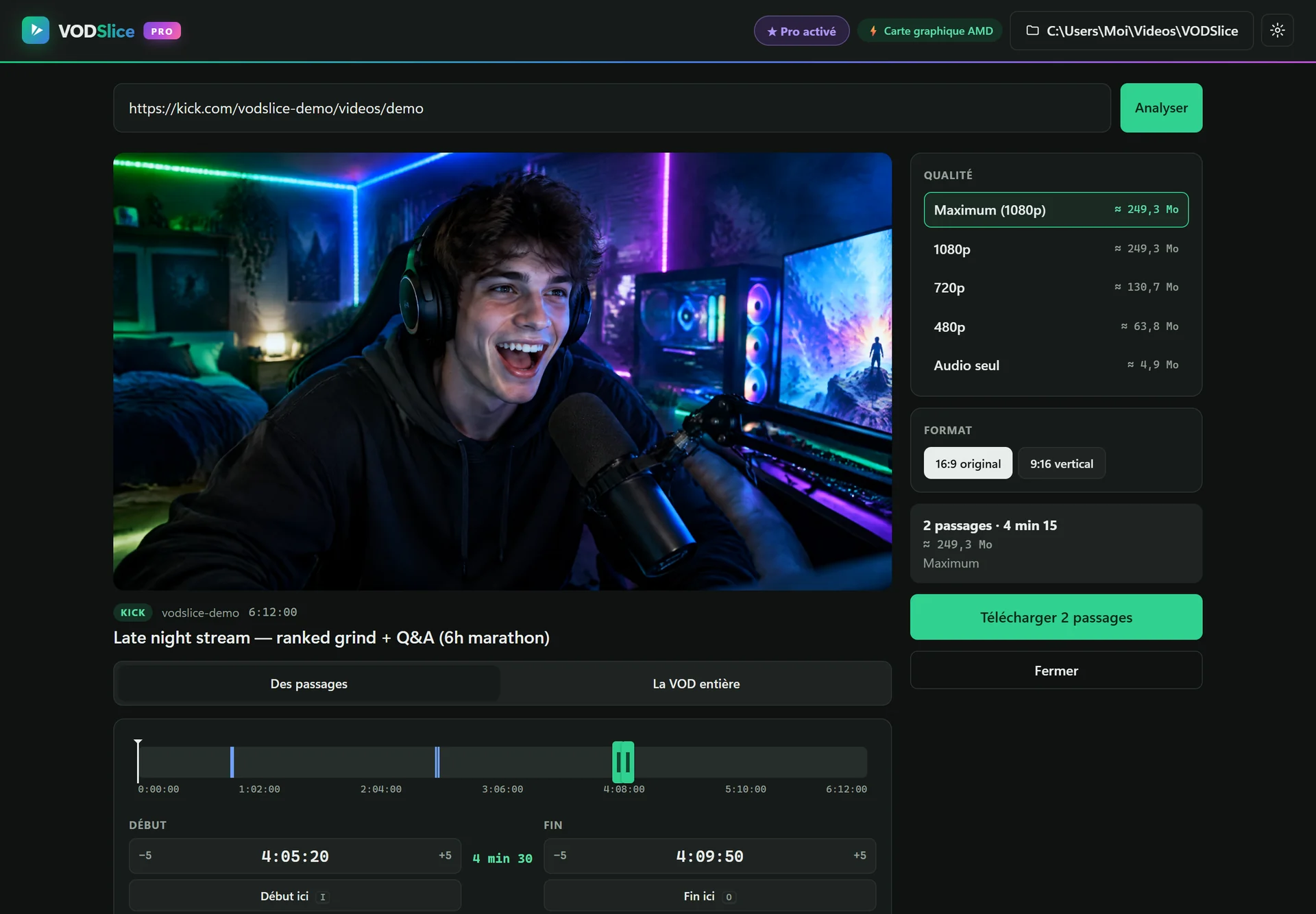
Twitch clips stop at 60 seconds. VODs don’t.
Twitch’s own clip tool is limited to one minute and VODs expire after a few weeks. Downloading the whole 8-hour VOD just to keep a 5-minute segment wastes hours and gigabytes.
VODSlice downloads only the segment you select, at the original quality, and can grab several highlights from the same VOD in one go. Timestamps in the link (?t=1h2m3s) are picked up automatically.
Download just the part of a Twitch VOD you need
Copy the VOD link
On Twitch, open Videos → Past broadcasts and copy the link (twitch.tv/videos/…).
Paste it in VODSlice
You get a preview player, the length and the size estimate for each quality.
Set start and end
Use the timeline handles, the I and O keys or type the times. Name each clip if you add several.
Download
VODSlice cuts at the exact second and encodes with your graphics card when available.
FAQ
Can I download Twitch clips longer than 60 seconds?
Yes. Select any length directly from the VOD: 2 minutes, 20 minutes or an hour. The free version allows up to 2 minutes per clip; Pro removes the limit.
Can I download subscriber-only VODs?
No. VODSlice only accesses VODs that are publicly available, like any visitor would.
Will the chat be included?
No, VODSlice saves the video and audio of the stream, not the chat overlay.
Does it work for my own channel?
Yes, and that’s the main use: saving your highlights before the VOD expires and turning them into YouTube videos and Shorts.